
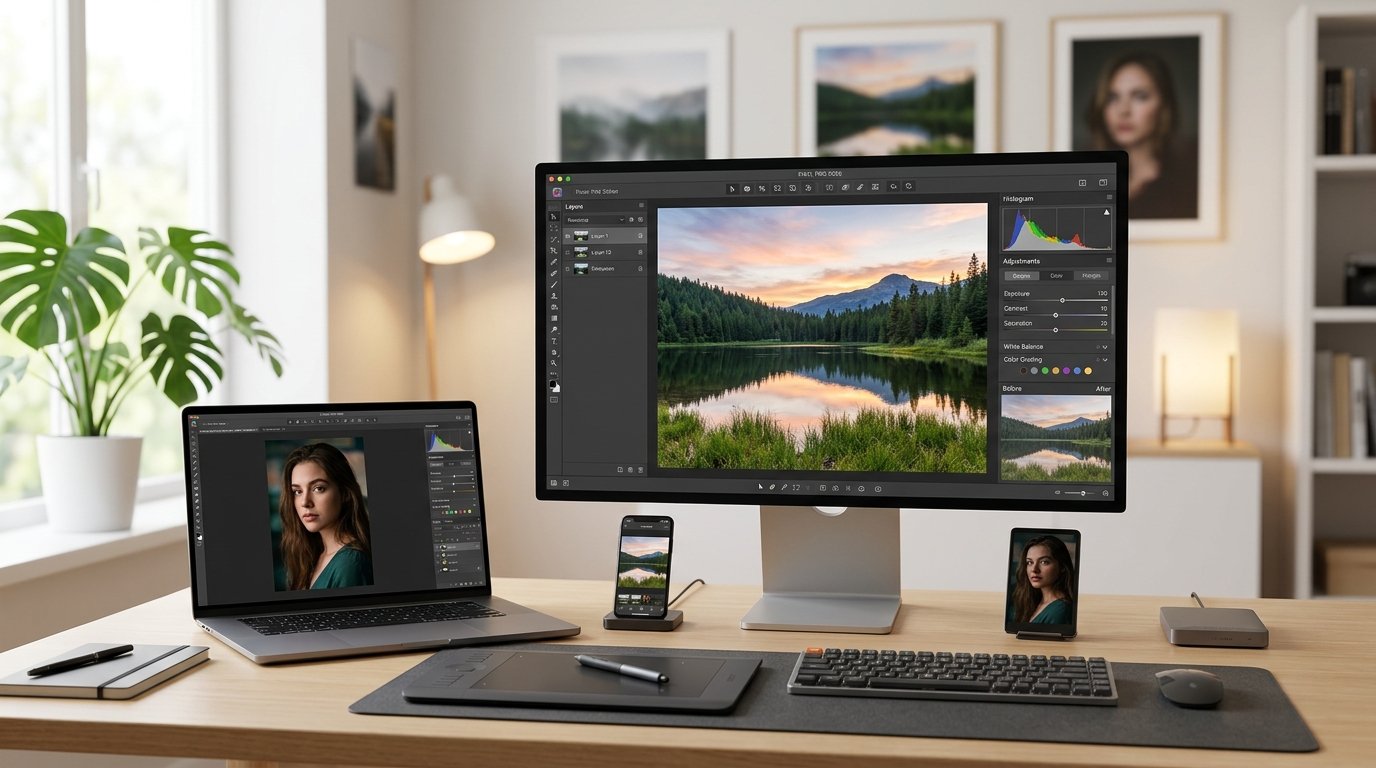
Photo editing has become an essential part of photography, digital marketing, blogging, social media, and online business. Whether you want to improve personal pictures, create attractive social media posts, edit product photos for an online store, or produce professional photography, the right photo editing software can help you achieve better results.
In 2026, photo editing tools offer a wide range of features, including color correction, background removal, portrait retouching, RAW image processing, creative effects, and AI-assisted editing. Some applications are designed for beginners who want quick results, while others provide advanced controls for professional photographers and designers.
However, choosing the right software can be challenging because every tool offers different features, pricing options, and levels of complexity. In this guide, we will explore the best photo editing software in 2026 for beginners and professionals, compare their main benefits, and share useful tips for choosing the right tool for your needs and budget.
Why Photo Editing Software Is Important in 2026
High-quality images help attract attention and communicate information more effectively. A well-edited photograph can improve a website’s appearance, make a product listing more appealing, and help social media content look more professional.
Photographers use editing software to correct exposure, improve colors, reduce noise, and enhance details. Bloggers and website owners use it to prepare featured images and illustrations. Online sellers can improve product photographs, while marketers can create visuals for advertising campaigns.
Modern editing software also makes many tasks easier through automated adjustments and AI-powered features. Nevertheless, the best results still depend on choosing appropriate settings and understanding how the final image will be used.
Adobe Photoshop: Best for Professional Photo Editing
Adobe Photoshop is one of the most widely recognized tools for advanced photo editing, image manipulation, and graphic design. It provides detailed control over layers, masks, selections, colors, and individual image elements.
Professional photographers can use Photoshop to retouch portraits, remove unwanted objects, combine multiple images, and create complex compositions. Designers can also use it to produce website graphics, advertising visuals, and promotional materials.
Photoshop includes AI-assisted features in supported plans that can help with tasks such as removing distractions or extending image compositions. These capabilities can save time, but results should always be reviewed carefully.
The main disadvantage is its learning curve. Beginners may need practice to understand layers, masking, selection tools, and advanced adjustments. Photoshop is also generally offered through a paid subscription, so it may not be the best choice for users who only need simple edits.
Best for: Professional photographers, graphic designers, digital artists, and users who need advanced editing controls.
Adobe Lightroom: Best for Photographers and Color Correction
Adobe Lightroom is an excellent option for photographers who want to improve image quality and manage large photo collections. It focuses on exposure adjustments, color grading, white balance, sharpening, noise reduction, and organizing photographs.
Wedding photographers, travel photographers, and content creators can use Lightroom to maintain a consistent look across multiple images. Its batch-editing workflow makes it easier to apply similar adjustments to an entire collection rather than editing every picture separately.
Lightroom is also useful for processing RAW files, which contain extensive image information from compatible cameras. This provides greater flexibility when correcting highlights, shadows, and colors.
Unlike Photoshop, Lightroom is not primarily designed for complex layer-based composites. Users who need detailed object manipulation may prefer to combine it with Photoshop or another advanced editor.
Best for: Photographers, travel bloggers, wedding professionals, and anyone who edits many photographs regularly.
Affinity by Canva: Best Free Alternative for Advanced Editing
Affinity by Canva is worth considering if you want advanced image-editing capabilities without committing to a traditional paid photo-editing subscription. Its editing tools can support layer-based work, selections, masks, retouching, and detailed image adjustments.
It can be useful for designers, photographers, bloggers, and small business owners who need more control than a basic online editor provides. Users can work on complex visual projects without necessarily paying for a monthly editing subscription.
Although it offers powerful capabilities, beginners may still need time to understand its interface and advanced features. Availability of specific AI-powered services or integrations may also depend on the current offering and associated account or plan.
Before installing it, check the official website for current system requirements and included features.
Best for: Budget-conscious creators, designers, and users looking for advanced editing without a standard monthly subscription.
Canva: Best for Beginners and Social Media Graphics
Canva is a beginner-friendly design platform that makes it easy to edit photographs and create attractive visual content. It offers templates and tools for social media graphics, presentations, banners, posters, thumbnails, and website images.
Users can resize images, adjust colors, add text, apply effects, and combine photographs with design elements. This makes Canva especially useful for people who want to create finished graphics without learning a complicated professional editing application.
Bloggers can use Canva to prepare article featured images, while online stores can create promotional graphics and social media managers can design posts for different platforms.
Canva offers both free and paid plans. Some premium templates, assets, and advanced features require a subscription, so users should check what is included before upgrading.
Best for: Beginners, bloggers, social media managers, students, and small business owners.
GIMP: Best Completely Free Open-Source Editor
GIMP is a free, open-source image editor available for major desktop operating systems. It provides tools for image manipulation, retouching, selections, layers, masks, and color adjustments.
It is a useful option for people who want to learn more advanced photo editing without paying for expensive software. Students can use it for design projects, while bloggers and small businesses can edit images for websites and promotional materials.
GIMP is particularly attractive because users can install and use its core software without a paid subscription. Its open-source nature also supports customization and community-developed extensions.
However, its interface may feel less intuitive to beginners, and its workflow differs from that of some commercial photo editors. Users who want extensive built-in AI features may prefer another option.
Best for: Students, hobbyists, budget-conscious designers, and users who prefer free open-source software.
Luminar Neo: Best for AI-Assisted Photo Editing
Luminar Neo focuses on making photo enhancement more accessible through a combination of manual adjustments and AI-assisted tools. Depending on the current version, users can explore features designed for portrait improvements, sky replacement, image enhancement, and creative effects.
It can be useful for travel photographers, hobbyists, and content creators who want attractive results without spending a long time making every adjustment manually.
For example, a landscape photographer might use automated tools to improve a sky, while a content creator could enhance lighting and colors before publishing an image online.
Although AI can simplify editing, automatic results are not always perfect. Unnatural edges, inconsistent lighting, or excessive effects may require manual correction. Pricing and licensing options can vary, so review the current terms before purchasing.
Best for: Beginners, hobby photographers, travel creators, and users who want quicker AI-assisted edits.
Capture One Pro: Best for Studio and Commercial Photography
Capture One Pro is a professional photo-editing application known for its RAW processing, color controls, and studio photography workflow. It is particularly relevant to photographers who need precise results and consistent image quality.
Commercial photographers can use it to adjust colors, manage image collections, and work with compatible cameras during studio shoots. Tethered shooting can be especially valuable when photographs need to appear on a computer screen shortly after being captured.
Capture One can be a strong option for fashion, portrait, product, and studio photography. However, its advanced features and professional focus may be unnecessary for casual users. It is also a paid product, so photographers should compare its capabilities and cost with their actual requirements.
Best for: Studio photographers, commercial professionals, fashion photographers, and users who need advanced color control.
DxO PhotoLab: Best for RAW Processing and Noise Reduction
DxO PhotoLab is designed for photographers who want detailed RAW processing, lens corrections, and image-quality improvements. It offers tools that can help correct optical imperfections and reduce unwanted noise in photographs.
This can be especially useful when working with images captured in low light or at high ISO settings. Travel photographers, wildlife photographers, and enthusiasts may benefit from its image-processing capabilities.
DxO PhotoLab is more focused on photographic development than on general-purpose graphic design. If your main goal is to create social media graphics with text and templates, Canva may be a simpler option.
Its paid editions and licensing terms can change, so check the official website for current information before making a purchase.
Best for: Enthusiast photographers, RAW shooters, and users who prioritize noise reduction and lens corrections.
Photopea: Best Browser-Based Photo Editor
Photopea is a browser-based image editor that can be useful when you do not want to install desktop software. It supports layered editing and a range of common image formats, making it a practical option for quick projects on compatible computers.
Users can edit images, work with layers, add text, and make adjustments directly in a web browser. It can be particularly helpful for students, freelancers, and people who use shared computers.
Because it runs in a browser, the experience can depend on the device, available memory, and internet environment. Users should also be careful when working with confidential images on shared or public computers.
Photopea offers free access with optional paid features. Check the current terms and supported formats for your intended workflow.
Best for: Students, casual editors, freelancers, and users who want editing tools without installing an application.
Darktable: Best Free Software for RAW Photography
Darktable is a free, open-source photography workflow application focused on developing and organizing digital photographs. It is particularly useful for people who shoot RAW images and want detailed control over exposure, color, contrast, and image processing.
Photographers can use Darktable to refine images from compatible cameras and develop a consistent editing workflow without paying for a subscription.
It is different from a general-purpose design application. While it can process and improve photographs, it is not primarily intended for creating template-based promotional graphics or complex text layouts.
Darktable can take time to learn, especially for people new to RAW processing. However, it is a valuable option for users who want technical control and are willing to practice.
Best for: Photography enthusiasts, RAW shooters, Linux users, and people seeking a free Lightroom-style workflow.
Best Photo Editing Software Compared
The following table summarizes the main strengths of each tool to help you select an option that matches your needs.
| Software | Best Use | Skill Level | Pricing Model |
|---|---|---|---|
| Adobe Photoshop | Advanced editing and composites | Intermediate to professional | Paid subscription |
| Adobe Lightroom | Photo organization and color correction | Beginner to professional | Paid subscription |
| Affinity by Canva | Advanced image editing and design | Beginner to professional | Free core app; check current terms |
| Canva | Social media graphics and simple edits | Beginner | Free and paid plans |
| GIMP | Detailed manual editing | Beginner to advanced | Free and open source |
| Luminar Neo | AI-assisted enhancements | Beginner to intermediate | Paid; licensing varies |
| Capture One Pro | Studio photography and color control | Intermediate to professional | Paid plans or license options |
| DxO PhotoLab | RAW processing and noise reduction | Intermediate to professional | Paid; editions vary |
| Photopea | Browser-based image editing | Beginner to intermediate | Free access and optional paid features |
| Darktable | Free RAW photo processing | Intermediate to advanced | Free and open source |
Features, platform support, and pricing can change. Always confirm the current details with the software provider before purchasing.
How to Choose the Best Photo Editing Software in 2026
Selecting the right photo editor becomes easier when you understand your main requirements. Consider these important factors before making a decision.
Consider Your Skill Level
Beginners should look for software with a clear interface, simple adjustment tools, and helpful tutorials. Canva and Luminar Neo can be approachable starting points, while Photopea is useful for learning browser-based editing.
Professional users may need advanced layers, masks, RAW processing, color controls, and detailed retouching features. Photoshop, Lightroom, Capture One Pro, and DxO PhotoLab serve different parts of these workflows.
Decide Whether You Need Free or Paid Software
If you are learning photo editing or working with a limited budget, begin with free options such as GIMP, Darktable, Photopea, or the core Affinity offering available under its current terms.
Paid software may be worthwhile if it provides specific features that save time or improve your professional results. Before subscribing, compare monthly costs, annual billing, trial conditions, and cancellation policies.
Check Your Computer’s Requirements
Advanced photo editors can require substantial processing power and memory, especially when handling high-resolution images or complex projects.
Check the minimum system requirements before downloading software. If you have an older computer, try a lightweight or browser-based option first and test it with your own photographs.
Look for the Features You Actually Need
Different editors specialize in different tasks. If you mainly adjust colors and exposure, Lightroom or Darktable may be appropriate. For detailed retouching, consider Photoshop, Affinity, or GIMP. If you mostly design social media graphics, Canva may be more practical.
Choosing features based on your workflow helps prevent unnecessary spending.
Consider File Formats and Compatibility
If you work with professional cameras, check support for your camera’s RAW files. If you collaborate with designers, you may need layered project files or specific export formats.
For websites and social media, commonly used output formats include JPEG, PNG, and WebP, although the best choice depends on the platform and purpose.
Review Privacy and Licensing
Use official websites or trusted app stores to download software. Review privacy settings before uploading personal or commercial images to online editing services.
If you create images for clients or sell products, check the licensing terms for stock assets, templates, fonts, and AI-generated content. Keep original files and backups whenever possible.
Tips to Save Money on Photo Editing Software
Photo editing does not have to be expensive. These practical tips can help you find the right tools without overspending.
- Start with free tools: Test GIMP, Darktable, Photopea, or other free options before paying for advanced software.
- Check official promotions: Software providers may offer seasonal discounts, introductory pricing, or special bundles.
- Compare subscription and license options: Consider the total cost over the period you expect to use the software.
- Use free tutorials: Learn from official documentation and reputable educational resources before paying for training.
- Avoid duplicate subscriptions: You may not need multiple applications that perform the same basic tasks.
- Check student eligibility: Some software providers offer discounts or special plans for eligible students and educators.
- Review renewals carefully: Check the price after a trial or introductory period so you are not surprised by future charges.
If you are purchasing software for a business, compare the features included in each plan rather than choosing based only on the advertised discount.
Common Photo Editing Mistakes to Avoid
One of the most common mistakes is over-editing photographs. Excessive sharpening, unrealistic skin smoothing, oversaturated colors, and unnatural backgrounds can make an image look less professional.
Another mistake is editing without keeping an original copy. Save a backup before making major changes so you can return to the original image if needed.
It is also important to export photographs at an appropriate size and quality. Large files may slow down a website, while overly compressed images can lose important details. Choose export settings based on whether the image is intended for printing, social media, or online publishing.
Finally, avoid choosing complicated software simply because professionals use it. The best editor is one that matches your needs and helps you produce consistent results efficiently.
Frequently Asked Questions (FAQs)
What is the best photo editing software in 2026?
The best option depends on your needs. Adobe Photoshop is well suited to advanced retouching and image manipulation, Lightroom is useful for organizing and editing photographs, Canva is convenient for beginners, and Affinity by Canva offers an advanced alternative worth exploring.
What is the best free photo editing software for beginners?
Canva, Photopea, GIMP, and the core Affinity offering are worth considering. Canva is especially convenient for simple designs, while GIMP and Affinity provide more control for detailed editing. The best choice depends on your preferred workflow and device.
Is Adobe Photoshop good for beginners?
Yes, beginners can learn Photoshop, but its many tools may take time to understand. Start with basic cropping, exposure, layers, and selection tools, then gradually move to more advanced techniques.
Which photo editing software is best for professional photographers?
Lightroom is useful for organizing and editing large photo collections. Photoshop is strong for detailed retouching, while Capture One Pro is valuable for studio workflows and color control. The right choice depends on the type of photography you do.
Can I edit photos online without downloading software?
Yes. Browser-based options such as Photopea and Canva allow users to edit images online. Available features depend on the service, plan, and device being used.
Is free photo editing software suitable for business use?
Free tools can be suitable for many business tasks, including image adjustments, website graphics, and promotional content. However, check the licensing terms for software, templates, fonts, and any assets used in commercial projects.
How can I improve my photo editing skills?
Practice with your own photographs, learn basic exposure and color correction, and follow reputable tutorials. Try to make subtle, consistent adjustments before experimenting with advanced effects.
Should I choose AI photo editing software?
AI-assisted editing can speed up tasks such as removing distractions, enhancing images, or replacing backgrounds. However, automated results should be checked for mistakes, and manual editing remains useful when you need precise control.
Final Thoughts
The best photo editing software in 2026 depends on your experience, budget, and creative goals. Beginners can start with Canva, Photopea, or other accessible tools, while users who want advanced editing without a traditional subscription can explore Affinity by Canva and GIMP.
Photographers who manage large collections may prefer Lightroom or Darktable, while professionals working on complex retouching and studio projects may benefit from Photoshop or Capture One Pro.
Before investing in a paid application, identify the features you need, test the software when possible, and compare its total cost. With the right photo editing tools and regular practice, you can create more polished photographs, improve your online content, and produce professional-looking visuals without unnecessary expense.